Descript alternatives: a workflow-first guide to choosing right
Compare descript alternatives by workflow—transcript editing, recording, captions, or pro NLE control—so you can switch with fewer surprises. Read on.
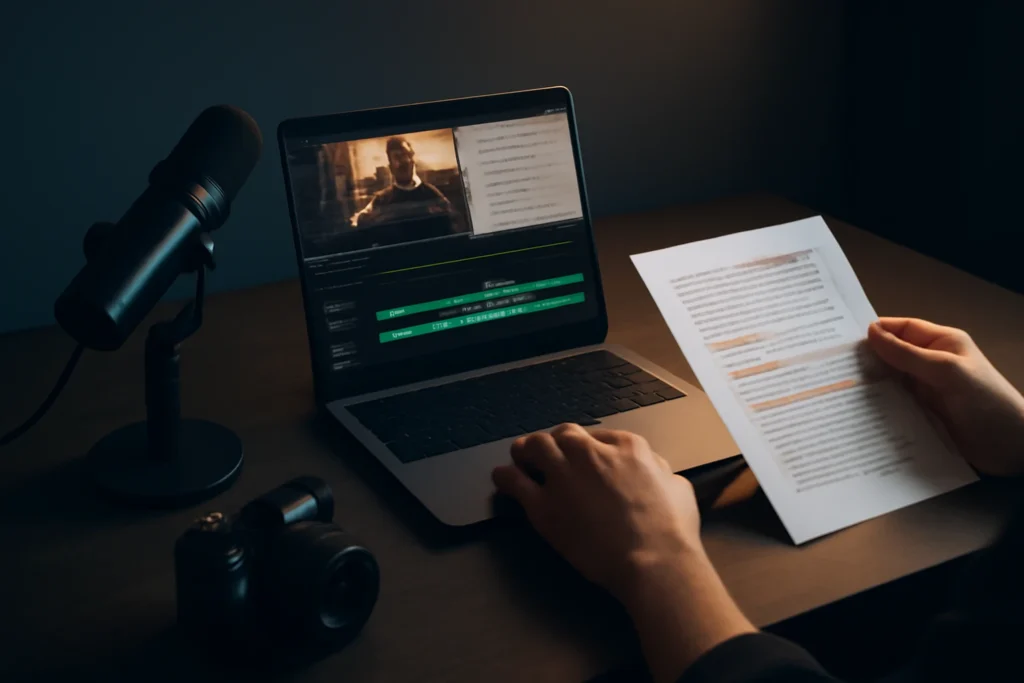
Why creators look for descript alternatives (and what Descript still does well)
Most people start searching for descript alternatives after they’ve proven that “edit by transcript” really can speed up production—but the day-to-day friction (slowdowns on long projects, exports that don’t match deliverables, collaboration quirks, or subscription fit) starts costing more time than it saves. Descript can still be a strong pick for spoken-word workflows because it combines recording, transcription, text-based edits, and quick publishing in one interface.
It also has a few strengths that are easy to miss until you switch: fast rough-cutting by deleting words, decent “clean up” tools for dialogue, and a workflow that’s approachable for non-editors who just need a clean, ship-ready episode or talking-head video.
The common reasons people switch from Descript
- Price vs. usage: if you publish occasionally or only need one feature (captions, a recorder, or clip exports), an all-in-one subscription can feel mismatched.
- Performance and reliability: long timelines, heavy transcription workloads, and frequent exports can drag on some machines or large project libraries.
- Workflow fit: some teams want deeper timeline control, better audio mixing, stronger remote recording safeguards, or faster “turn into shorts” output than an all-in-one editor provides.
Define what you’re replacing before you pick a tool
Before you pick an alternative to descript, get specific about which layer Descript currently covers for you: capture (remote recording or screen/webcam), editing (transcript-first cuts vs timeline edits), packaging (captions/templates), or review/collaboration. The best “replacement” is often one primary tool plus one specialist add-on, not a single app that does everything.
If the friction you feel is mainly remote interviews, it’s worth reading Descript vs Riverside first—many creators don’t need to replace their editor at all; they just need more reliable capture.
descript alternatives: Choose the category before choosing the tool
Descript sits across multiple jobs. If you choose by brand instead of by job, you’ll usually trade one annoyance for a different one. Start by choosing the category that matches your “must not fail” requirement.
Transcript-based editing in descript alternatives: what it replaces (and what it won’t)
Transcript-based editing replaces the slow parts of spoken-word cutting: removing tangents, tightening pauses, and finding moments by searching words instead of scrubbing waveforms. It won’t replace everything an editor might need, like detailed audio mixing, complex motion graphics, advanced color, multicam nuance, or the keyboard-driven speed of a pro timeline editor.
Practical reality: transcript accuracy and speaker labeling vary widely by tool, accent, mic quality, and crosstalk. The same file can feel effortless in one app and painful in another.
The five “Descript jobs” to map to tools
- Transcript editor for long-form talk content
- Remote recording/interviews studio
- Screen + webcam recorder for tutorials
- AI repurposing into social clips with captions
- Pro timeline editing (NLE) with full control
The matrix below is a quick way to prevent a mismatch.
| Primary need | What to prioritize | What you’re willing to trade |
|---|---|---|
| Cut long conversations fast | Transcript accuracy, speaker labels, search | Advanced mixing/color/motion |
| Never lose a guest recording | Local tracks, backups, reconciling | All-in-one editing convenience |
| Record tutorials quickly | Stable capture, retakes, cursor tools | Transcript-first editing |
| Turn episodes into shorts | Highlights, templates, multi-format exports | Deep editorial control |
| Finish like an editor | Multicam, proxies, audio/color, exports | “Edit-by-words” as the main interface |
Category 1: Transcript-first editing tools (closest to the Descript feel)
Who transcript-first tools are best for
Choose this category if your edits are mostly structural and verbal: remove words, tighten the pace, locate moments quickly, and produce clean captions for podcasts, interviews, talking-head YouTube, and course lessons. You’ll be happiest if you don’t rely on heavy effects, advanced grading, or complex audio routing.
What to test in a transcript-first descript alternative
- Transcription quality on your real audio: accents, interruptions, and poor room tone are where tools separate.
- Speaker labels you can trust: diarization that holds up through crosstalk matters more than a nice UI.
- Fast navigation: search-to-moment should feel instantaneous on a 60–90 minute recording.
- Reviewable cleanup: filler/silence trimming should be adjustable and easy to audit, not a black box.
- Caption exports: SRT/VTT export is the minimum; style controls matter if you burn captions into video.
A short list to trial (and the tradeoff vs Descript)
- Adobe Premiere Pro: a solid option if you want text-based editing and a full pro timeline in the same project; the tradeoff is more complexity and a steeper learning curve than a creator-first editor.
- VEED: useful for simpler text-driven trimming, quick captioning, and browser-based edits; the tradeoff is less control for demanding projects, and performance depends on your connection and file sizes.
- CapCut (desktop/web): a good fit if your output is social-first and you want speed plus templates; the tradeoff is that long-form organization and studio-style workflows can feel less structured than Descript.
Category 2: Remote recording and interview workflows (replace the capture layer)
When recording reliability matters more than your editor UI
If your biggest pain is ruined interviews—lag, dropouts, inconsistent levels—prioritize a dedicated remote recording studio first. You can always edit elsewhere, but you can’t recover audio that never recorded.
Features that prevent ruined guest recordings
- Local recording for each participant (separate tracks)
- Automatic backups and recovery after disconnects
- Track reconciling/upload once the call ends
- Live monitoring that helps you catch clipping, low levels, and noise early
Tools to consider (and the tradeoff vs Descript)
- Riverside: popular for local-track capture and creator workflows; the tradeoff is you’ll likely do deeper edits in another tool if transcript-first editing is your main method.
- SquadCast: built around reliable remote podcast capture with separate tracks; the tradeoff is less of an all-in-one “edit and ship” experience.
- Zencastr: convenient web-based recording with production-oriented features; the tradeoff is you may still need a separate editor and a separate “shorts” tool depending on your output.
Category 3: Screen and webcam recording tools (replace Descript’s recorder use-case)
When “record + quick cleanup” is the whole job
If you mainly use Descript for tutorials, product demos, and onboarding videos—and your edits are light—dedicated recorders are usually faster to open, faster to share, and more predictable for capture.
What matters in a recorder-first workflow
- Retake/redo and easy clip stitching
- Cursor emphasis, click highlights, and basic callouts
- Noise reduction and level normalization (even if you finish elsewhere)
- Quick trims plus straightforward sharing/export
Tools to consider (and the tradeoff vs Descript)
- Loom: excellent for fast async updates and internal sharing; the tradeoff is less depth for polishing long-form content.
- OBS Studio: powerful, flexible, and free; the tradeoff is you’ll do cleanup and editing elsewhere, and setup can be technical.
- Camtasia: strong for tutorial-style capture plus practical edits; the tradeoff is less transcript-first editing and a more “training video” feel.
Category 4: AI repurposing and caption-first tools (turn long videos into shorts)
When your bottleneck is clip volume, not editing difficulty
If you spend more time making 10 clips than making one episode, you don’t need a heavier editor—you need faster repurposing. This category is about highlight selection, formatting speed, and consistent captions that match your brand.
What to look for in repurposing tools
- Auto-detected highlights with easy manual adjustments
- Multi-format exports (9:16, 1:1, 16:9) and safe area guides
- Caption styling presets and brand templates
- Batch outputs and versioning for different platforms
Tools to consider (and the tradeoff vs Descript)
- Opus Clip: built around finding moments and outputting social-ready clips; the tradeoff is it’s not designed for end-to-end episode editing.
- Vidyo.ai: useful for generating multiple short variations from long video; the tradeoff is you’ll still want manual refinement for pacing and emphasis.
- Captions (app): strong for caption styling and mobile-first workflows; the tradeoff is it’s less comfortable for long-form desktop editing.
Category 5: Pro NLEs with AI assist (for editors who outgrew Descript)
When timeline control beats transcript control
Choose a pro NLE if your frustration is simply, “I need real editing controls.” That usually means multicam precision, better audio processing, advanced color, proxies for heavy footage, and predictable exports. You can still use transcription as an assist—you’re just not using it as the main control surface.
What to prioritize in a pro editor
- Multicam workflows and keyboard-driven trimming
- Proxy/optimized media pipelines for large projects
- Deep audio tools (EQ, compression, noise work) and flexible routing
- Plugins, integrations, and robust export settings for client delivery
Tools to consider (and the tradeoff vs Descript)
- DaVinci Resolve: excellent for serious video finishing and audio with Fairlight; the tradeoff is a learning curve and less of an “edit-by-words” experience.
- Final Cut Pro: fast, responsive timeline editing for Mac-centric teams; the tradeoff is fewer built-in transcript-first behaviors.
- Adobe Premiere Pro: flexible, team-friendly, and integrates well within Adobe workflows; the tradeoff is subscription cost and more moving parts than a creator all-in-one.
Decision framework: Pick your descript alternative in 5 steps
Step 1: Name your primary output
Write down the one output that must ship reliably: podcast episodes, YouTube videos, course lessons, or social clips. A weekly podcast workflow optimizes for dialogue and consistency; a shorts workflow optimizes for speed, templates, and aspect ratios.
Step 2: Choose your editing style
If you think in sentences, go transcript-first. If you think in shots and layers, go timeline-first. If you think in formats and speed, go template/caption-first.
Step 3: List your non-negotiables
- Do you need local-track remote recording?
- Do you need team permissions, comments, or shared libraries?
- Do you require specific exports (stems, 4K, audio-only, SRT/VTT)?
- Is your machine strong enough for heavy projects, or do you need a lighter web workflow?
Step 4: Run a 30-minute trial on a real segment
- Pick a real 10–15 minute clip with crosstalk and a couple of proper names.
- Transcribe it, then time how long it takes to remove filler, correct speaker labels, make five clean cuts, and export captions.
- Export the final video/audio and check sync, artifacts, loudness consistency, and caption timing.
- Write down what broke your flow: lag, confusing controls, missing shortcuts, or export limitations.
Step 5: Plan the migration (so switching doesn’t stall publishing)
Migration is rarely perfect. Most platforms won’t import Descript projects with edits intact, so switching often means exporting a clean master (and sometimes stems) and rebuilding the edit where needed. Captions and transcripts are usually portable via SRT/VTT or text export, but expect cleanup—especially around speaker names and punctuation.
If your new workflow includes AI voiceovers for intros, ads, or course narration, a dedicated voice tool may be a cleaner add-on than trying to do everything inside the editor. For that specific decision, use our ElevenLabs alternative framework to pick based on voice quality, control, and workflow fit.
Free and budget path: What to use if you need a descript alternative free
If you’re searching for a descript alternative free, define “free” the same way you define deliverables. Many free plans cap minutes, limit export resolution, add watermarks, or lock features like caption styles and brand presets. Those limitations can cost more time than the subscription you’re trying to avoid.
A practical free stack (by job)
- Transcript-ish + quick edits: CapCut’s free tier can cover basic cutting and captions for short content, but longer projects can become harder to manage.
- Remote recording: free tiers and trials can be fine for testing, but don’t assume reliability—test with your exact guest setup (Wi‑Fi quality, mic type, browser/device).
- Screen recording: OBS Studio is free and watermark-free for capture; pair it with a separate editor for cleanup.
- Repurposing: free tiers of clipping tools are best used to evaluate highlight detection and caption styling, not as a long-term production plan.
- Pro editing without a watermark: DaVinci Resolve’s free version is genuinely capable, but it’s timeline-first and takes time to learn.
Honest tradeoff: “free” is often paid for in re-exports, workaround steps, and manual template rebuilding. If you publish weekly, a modest paid plan can be cheaper than repeated friction.
Wrap-up: When to stay with Descript and when to switch
The best descript alternative depends on which part of your workflow is failing: capture reliability, transcript editability, social repurposing speed, or pro finishing control. A lot of creators get better results by keeping Descript for what it’s good at and adding one specialist tool, rather than replacing everything at once.
Stay if transcript editing + quick publishing is the core value
Stay if “edit by words” is your advantage and you want one place to transcribe, cut, caption, and export. Many replacements will force a more fragmented process, especially if you’re trying to handle recording, editing, and repurposing inside a single app.
Switch if your pain matches a category-specific dealbreaker
- Switch to a remote studio if you can’t risk flaky guest recordings (and compare options with Descript vs Riverside before you rebuild your whole stack).
- Switch to a caption/repurpose tool if shorts output is your primary deliverable.
- Switch to a pro NLE if you need multicam, color workflows, plugins, or more predictable delivery control.
One-sentence recommendations by user type
- Weekly podcaster with guests: protect recording quality first, then pick the editor that makes trimming and publishing painless.
- Solo tutorial YouTuber: use a dedicated screen recorder and a light editor you’ll actually open daily.
- Social-first marketer: pick a repurposing tool as the hub, and use a full editor only when a clip needs real restructuring.
- Editor delivering to clients: move finishing into a pro NLE and treat transcription as an assist, not the core interface.
If you choose the workflow category first, you’ll end up with a stronger stack—and a clearer reason for every subscription. If you’re making scripted avatar videos rather than editing real footage, that’s a different job entirely; start with this Synthesia alternative guide instead of forcing a traditional editor to behave like an avatar generator.
Frequently Asked Questions About descript alternatives
What is the best alternative to Descript for podcast editing?
It depends on whether you’re replacing editing, recording, or both. If your priority is studio-grade remote capture, start with dedicated remote recording tools (for example, Riverside, SquadCast). If you need deeper editing and mixing, a pro editor like DaVinci Resolve or Adobe Premiere Pro is often a better fit—but you’ll give up Descript’s unified transcript-first workflow.
Are there any descript alternatives that support true transcript-based editing?
Yes, but “true” transcript editing varies. Adobe Premiere Pro includes text-based editing that can cut from a transcript-style view, and some web editors offer text-driven trimming. Accuracy and speaker labeling can vary a lot by audio quality and accents, so test using one of your real episodes before committing.
What is a good descript alternative free that doesn’t add a watermark?
For screen recording, OBS Studio is free and watermark-free (though it’s not a transcript editor). For full video editing, DaVinci Resolve has a robust free version with no watermark, but it’s timeline-first and takes time to learn. Free tiers of web tools often limit minutes or export quality, so compare those limits to what you actually need to publish.
Can I move my Descript transcripts and captions to another editor?
Usually you can export captions (such as SRT/VTT) and reuse them elsewhere, but you typically can’t import a Descript project and keep your edits intact. Expect migration to involve exporting a final video/audio master (or stems) and rebuilding parts of the edit in the new tool, with some transcript cleanup afterward.
Some links in this article are affiliate links. If you buy through them we may earn a commission, at no extra cost to you. It never affects which tools we recommend.
Tools covered in this guide
 Descript
Edit video and podcasts by editing transcripts with AI-assisted production tools.
From ~$12/mo
Descript
Edit video and podcasts by editing transcripts with AI-assisted production tools.
From ~$12/mo
 Veed.io
Browser-based video editing with AI captions, cleanup, and content repurposing tools.
From ~$12/mo
Veed.io
Browser-based video editing with AI captions, cleanup, and content repurposing tools.
From ~$12/mo
 InVideo
Create and edit videos from prompts, scripts, stock media, and templates.
From ~$20/mo
InVideo
Create and edit videos from prompts, scripts, stock media, and templates.
From ~$20/mo